
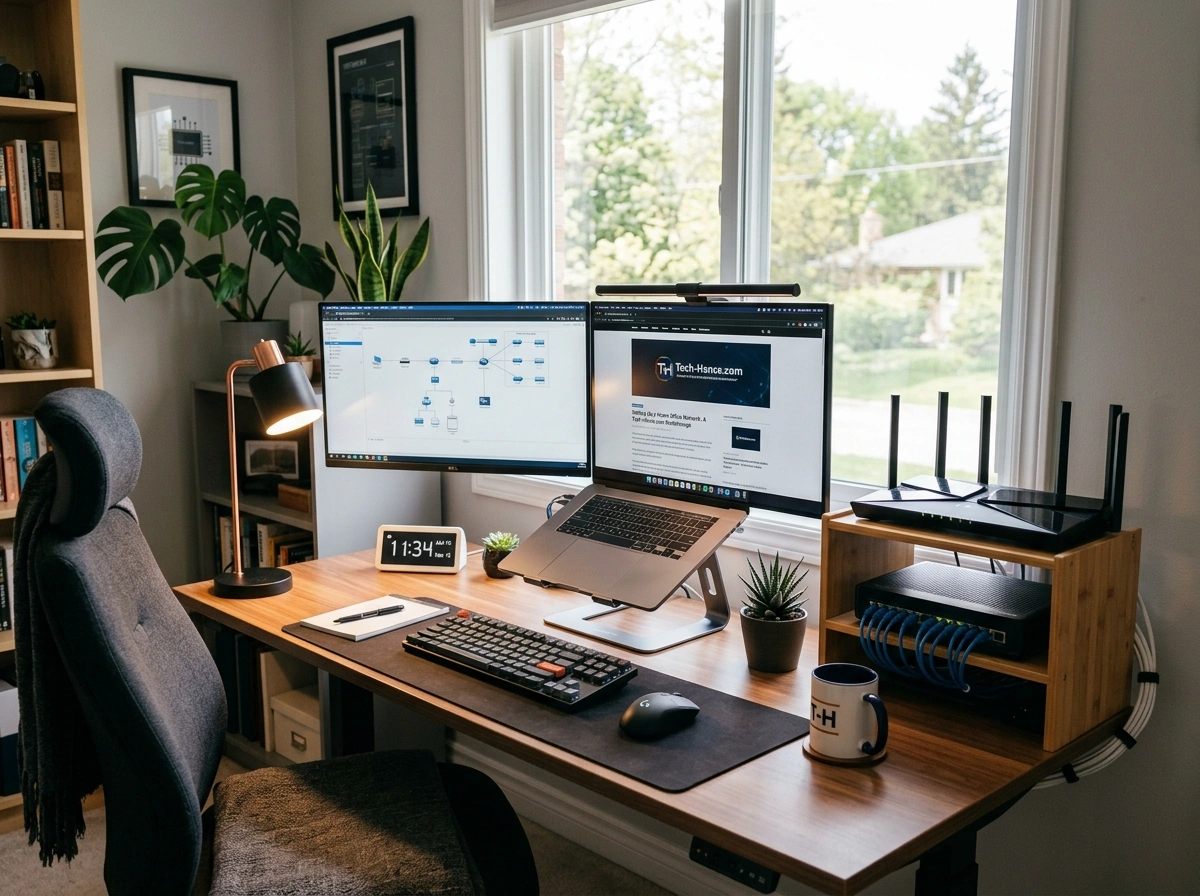
Working from home only works well when your network does. A dropped video call during a client pitch or a file that won’t upload before deadline can cost you real money and credibility. The good news? Building a fast, secure home office network doesn’t require an IT degree.
This walkthrough shows you how to plan, build, and protect a network that keeps up with remote work demands. By the end, you’ll know how to:
- Choose the right hardware for your space and internet speed
- Secure your connection with modern tools like WPA3 and VPNs
- Fix the most common slowdowns that interrupt your workday
Let’s build something that works as hard as you do.
Start With a Plan for Your Home Office Network
Before you buy a single cable, map out what you actually need. A solid plan saves you money and prevents frustrating rework later.
Count Your Devices and Demands
List everything that will connect: laptops, phones, printers, smart speakers, security cameras, and video conferencing gear. A household running four video calls at once needs far more capacity than a solo freelancer answering email.
Then check your internet plan. For most remote workers, 100–300 Mbps download speed handles video meetings, cloud backups, and file transfers comfortably. If several people stream and work simultaneously, aim higher.
Map Your Space
Note where your work happens and where your internet enters the home. Thick walls, long distances, and multiple floors weaken wireless signals. Knowing your layout helps you decide between a single router, a mesh system, or wired runs to key rooms.
Choosing the Right Router and Modem
Your router and modem are the heart of the setup. Picking the right pair makes everything else easier.
Modem vs. Router: Know the Difference
The modem connects your home to your internet service provider. The router shares that connection across your devices. Some units combine both, but separating them often gives you better performance and easier upgrades.
If your ISP rents you a combo unit, buying your own can save $10–$15 a month and give you more control.
What to Look For in a Router
- Wi-Fi 6 or Wi-Fi 6E support: These standards handle more devices at once with less lag.
- Dual or tri-band: Multiple bands spread traffic so your video call isn’t fighting a file download.
- Gigabit Ethernet ports: Essential for wired connections to your main workstation.
- Mesh capability: Great for larger homes where one router can’t reach every room.
For a large or multi-story home, a mesh system spreads several nodes around your space to erase dead zones. For an apartment or small home, a single strong router usually does the job.
Wired vs. Wireless: Picking Your Connections
You don’t have to choose just one. The best home office networks mix both.
When to Go Wired
A wired Ethernet connection delivers the fastest, most stable link. Use it for:
- Your primary desktop or docked laptop
- Video conferencing stations
- Desktop workstations handling large files
Ethernet avoids interference and dropped signals, which matters most during live meetings.
When to Go Wireless
Wi-Fi wins on flexibility. Use it for phones, tablets, laptops you carry around, and smart home gear. Just place your router centrally and away from metal objects, microwaves, and thick walls that block signals.
Network Security Best Practices
Remote work often means handling sensitive company data. Weak security puts both your job and your employer at risk. Lock things down from day one.
Turn On Your Firewall
Most routers include a built-in firewall. Confirm it’s enabled in your admin settings. A firewall blocks unwanted traffic before it reaches your devices, acting as a first line of defense against intrusions.
Use WPA3 Encryption
WPA3 is the current standard for Wi-Fi security, and it’s far stronger than older WPA2. In your router settings, select WPA3 (or WPA2/WPA3 mixed mode if some older devices need it). This encrypts the traffic between your devices and router so nearby snoops can’t read it.
Add a VPN for Sensitive Work
A virtual private network (VPN) encrypts your internet traffic end to end. If you handle client records, financial data, or protected health information, a VPN adds a critical layer of privacy. Many employers provide one; if not, a reputable paid service is worth the cost.
Extra Security Steps
- Change the default router admin username and password immediately.
- Create a separate guest network for visitors and smart devices.
- Update your router firmware regularly to patch known flaws.
- Use strong, unique Wi-Fi passwords.
For deeper technical breakdowns and hardware reviews, tech-hence.com offers practical guides that walk you through advanced configurations step by step.
Organizing Your Devices
A tidy network is easier to manage and troubleshoot. Take a few minutes to get organized.
Name Everything Clearly
In your router dashboard, rename connected devices with labels like “Work-Laptop” or “Office-Printer.” When something goes wrong, you’ll know instantly what’s affected.
Prioritize Critical Gear
Many routers offer Quality of Service (QoS) settings. Use them to give priority to your work laptop and video conferencing tools. That way, a family member’s game download won’t freeze your meeting.
Keep Cables Clean
Label your Ethernet cables and use ties to keep them off the floor. It looks professional on camera and prevents accidental unplugging.
Optimizing Bandwidth for Remote Work
Even a fast plan feels slow if bandwidth is poorly managed. A few tweaks make a big difference.
Manage Peak-Hour Traffic
Schedule large cloud backups and software updates for overnight hours. This frees daytime bandwidth for meetings and live collaboration.
Position for Performance
Keep your router elevated and central. If dead zones persist, add a mesh node or Wi-Fi extender near your office. Even moving a router a few feet away from a wall can boost signal strength noticeably.
Reduce Interference
The 2.4 GHz band travels farther but gets crowded. The 5 GHz band is faster over shorter distances. Connect your work devices to 5 GHz when you’re close to the router for the smoothest experience.
Troubleshooting Common Issues
Even a great setup hits snags. Here’s how to solve the most frequent problems fast.
Slow or Dropping Connection
- Restart your modem and router (unplug for 30 seconds).
- Check whether one device is hogging bandwidth.
- Move closer to the router or switch to 5 GHz.
Wi-Fi Dead Zones
- Reposition the router to a central, open spot.
- Add a mesh node or extender to reach far corners.
- Reduce physical obstructions between you and the router.
Frequent Disconnects During Calls
- Switch that workstation to a wired Ethernet connection.
- Update your router firmware and network drivers.
- Enable QoS to prioritize conferencing apps.
Can’t Connect a New Device
- Confirm you’re entering the correct Wi-Fi password.
- Check whether you’ve hit a device limit on the network.
- Verify the device supports your router’s security standard.
Conclusion
A reliable home office network is one of the smartest investments you can make in your remote work life. Start with a clear plan, pick hardware that matches your space and speed, and blend wired stability with wireless flexibility. Layer on strong security with a firewall, WPA3 encryption, and a VPN, then fine-tune bandwidth so your most important tasks always come first.
Your next steps are simple: audit your current devices, check your router’s security settings today, and switch your primary workstation to a wired connection. Small changes add up to fewer dropped calls, faster uploads, and a workday that runs without interruption. Build it once, build it right, and get back to work
